Associate Editor Instructions: Difference between revisions
Jump to navigation
Jump to search
No edit summary |
No edit summary |
||
| (62 intermediate revisions by 2 users not shown) | |||
| Line 1: | Line 1: | ||
== | ==Introduction== | ||
*IMPORTANT: '''<u>On the [[ | *IMPORTANT: '''<u>On the [[Volunteers]] Page, Track Progress in Real Time</u>''' of assigning author to pages (pending) and completion of pages (complete) as well as the date you reviewed the page and any notes of importance such as "non-WHO entity page" or check permissions for a figure. Open spaces in your area on this spreadsheet will alert the Editor-in-Chief to continue connecting potential authors with you. | ||
*Authors who are interested in the area in which you're Associate Editor, will be connected with you for the following <u>'''Onboarding Process'''</u>: | |||
# | #Ensure the new author has completed the '''[https://mms.cancergenomics.org/members/form.php?orgcode=CGC&fid=3830649 <u>Volunteer Form</u>]'''. | ||
# | #Create a username and password for a new author (see section below). IMPORTANT: Add the information to the [[User Access Log]]. | ||
#Refer them to the [[Author Instructions]], which contains information including links to the video tutorial, Word version of page templates, policy on figure inclusion, and how to cite CCGA pages. | |||
#Emphasize to authors to please use the supplied tables if applicable. | |||
# | #Once a page is assigned, ensure the author's name is added to the top of the page for clarity that the page is in progress. | ||
#Once a page is assigned, ensure the author's name is | |||
#If the author is a trainee, ensure they are working with a mentor or perform the mentor function if you're able to do so. | #If the author is a trainee, ensure they are working with a mentor or perform the mentor function if you're able to do so. | ||
#Set up a reasonable due date for the author. For example, propose 4 weeks and if author agrees, send an Outlook invite for that due date that has a one week prior reminder prior to this deadline. | #Set up a reasonable due date for the author. For example, propose 4 weeks and if author agrees, send an Outlook invite for that due date that has a one week prior reminder prior to this deadline. | ||
*After authors indicate | *After authors indicate a page is "complete", perform <u>'''Editorial Review'''</u>: | ||
#Review the content for accuracy and appropriate completeness. | #Review the content for accuracy and appropriate completeness. | ||
#Prioritize use of the tables, including helping the author convert the content or doing so yourself if applicable. If a table is not needed based on current knowledge, | #Prioritize use of the tables, including helping the author to convert the content or doing so yourself if applicable. If a table is not needed based on current knowledge, remove it so that the page doesn’t look unfinished, but if in the future information is added that could be put in one of the tables, convert it. | ||
#Ensure the authors have inserted references in the standard format using the PubMed extension | #Ensure the authors have inserted references in the standard format using the PubMed extension. | ||
#Ensure | #Ensure the under construction note at the top of the page has been removed. | ||
* | *<u>Once a page has completed content, '''Add Categories and Page Citation Information'''</u>: | ||
# | #Add the Categories so that this page is now linked to the searching functions on the homepage (see section below). | ||
# | #Add the citation for the page in the Notes section at the bottom. For example: *''Citation of this Page'': Naeini Y, Quintero-Rivera F. “Myeloid Sarcoma”. Compendium of Cancer Genome Aberrations (CCGA), Cancer Genomics Consortium (CGC), updated {{REVISIONMONTH}}/{{REVISIONDAY}}/{{REVISIONYEAR}}, <nowiki>https://www.ccga.io/index.php/Myeloid_Sarcoma</nowiki>. See this in action at the bottom of [[Acute Myeloid Leukemia (AML) and Related Precursor Neoplasms|Example]]. | ||
##In order to have the updated section autopopulate on each page, you must use wiki-specific syntax. Therefore, copy this example from the "Edit source" tab and place it in the correct location on the target page using the "Edit" tab or manually type or paste in the yellow highlighted text below. | |||
# | |||
[[File:Citing page image.png|center|thumb|alt=]] | |||
*<u>'''Add WHO Copyright Information'''</u>: | |||
#Add the WHO copyright permission information for any disease overview page that shows WHO classification structure in the Notes section at the bottom (last entry). You must use wiki-specific syntax. Therefore, copy the following information using the wiki syntax in the "Edit source" tab, add it in the appropriate place near the bottom of the target page using the "Edit source" tab (make sure there's a space after the previous entry): <nowiki>*</nowiki>The hierarchical tumour classification structure displayed on this page is reproduced from the [https://tumourclassification.iarc.who.int/welcome/ WHO Classification of Tumours] with permission from the copyright holder, ©International Agency for Research on Cancer. | |||
==How to Create a New User Account== | |||
#Sign into your personal CCGA account | |||
#On left side of the homepage, click on “Special pages” | |||
#Under the subheading Long/create account, click on “Create account” | |||
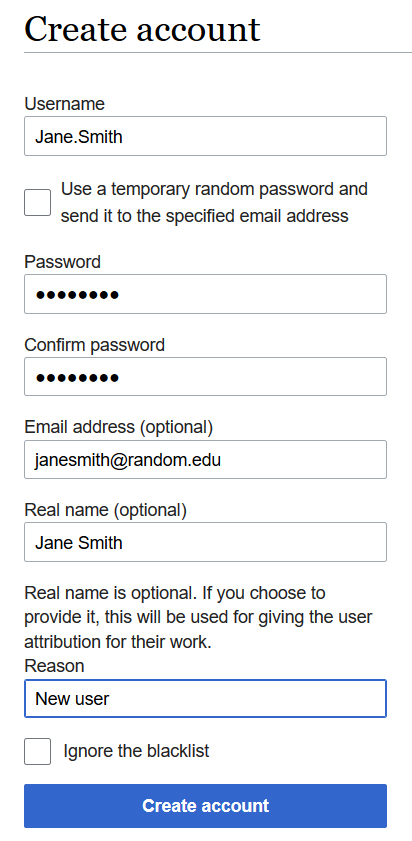
#Fill out form such as the example below and click "Create account" | |||
#As often the automatic email with a temporary password goes to junk mail, that option is not used. Instead, email the new user directly with their account credentials and let them know about the junk mail issue if they have to reset their password. | |||
#IMPORTANT: Add the information to the [[User Access Log]].[[File:Create account example.jpg|none|thumb]] | |||
==How to Add Categories to a Page== | |||
#At the bottom of each page, below the final Notes section, is a box with "Categories" in it. These represent links from the homepage's search options. | |||
#To create Categories on a page that doesn't yet have any, log into your account and select the "Edit" tab at the top of the screen. | |||
#Click on the hamburger icon on the upper right and select "Categories" from the drop down menu (see image below). | |||
#In the box, add in categories appropriate to the page using the exact language of the options available here: [[All Categories]]. | |||
#Save changes. | |||
#Of note, if the page already has categories, they can be edited (deleted or added) in the same place by selecting the "Categories" from the hamburger icon's drop down menu. | |||
[[File:Inserting Categories.jpg|none|thumb|871x871px]] | |||
==Policy for Granting of CCGA Contributor Access== | |||
The Compendium of Cancer Genome Aberrations (CCGA) is a crowdsourced resource, with content created and modified in real time by users given a username and password. This policy defines the process for determining new user access for creating and editing content. | |||
#A member of the CCGA Knowledgebase workgroup or Genomic Resources Development Committee (GRDC) may provide access immediately if requested to do so by an individual. | |||
#The person who provides access will add the new contributor information into the user access log at [[User Access Log]]. | |||
#It is encouraged that ABMGG trainees, pathology residents or other post-graduate trainees collaborate with a mentor/sponsor who can help curate their work. | |||
#Individuals will be required to review and agree with the “Honor Code for CCGA Content Contributor”. | |||
#The GRDC reserves the right to deny CCGA site editorial access to any applicant and to remove access as deemed appropriate. | |||
# | |||
# | |||
# | |||
Revision as of 17:09, 3 March 2021
Introduction
- IMPORTANT: On the Volunteers Page, Track Progress in Real Time of assigning author to pages (pending) and completion of pages (complete) as well as the date you reviewed the page and any notes of importance such as "non-WHO entity page" or check permissions for a figure. Open spaces in your area on this spreadsheet will alert the Editor-in-Chief to continue connecting potential authors with you.
- Authors who are interested in the area in which you're Associate Editor, will be connected with you for the following Onboarding Process:
- Ensure the new author has completed the Volunteer Form.
- Create a username and password for a new author (see section below). IMPORTANT: Add the information to the User Access Log.
- Refer them to the Author Instructions, which contains information including links to the video tutorial, Word version of page templates, policy on figure inclusion, and how to cite CCGA pages.
- Emphasize to authors to please use the supplied tables if applicable.
- Once a page is assigned, ensure the author's name is added to the top of the page for clarity that the page is in progress.
- If the author is a trainee, ensure they are working with a mentor or perform the mentor function if you're able to do so.
- Set up a reasonable due date for the author. For example, propose 4 weeks and if author agrees, send an Outlook invite for that due date that has a one week prior reminder prior to this deadline.
- After authors indicate a page is "complete", perform Editorial Review:
- Review the content for accuracy and appropriate completeness.
- Prioritize use of the tables, including helping the author to convert the content or doing so yourself if applicable. If a table is not needed based on current knowledge, remove it so that the page doesn’t look unfinished, but if in the future information is added that could be put in one of the tables, convert it.
- Ensure the authors have inserted references in the standard format using the PubMed extension.
- Ensure the under construction note at the top of the page has been removed.
- Once a page has completed content, Add Categories and Page Citation Information:
- Add the Categories so that this page is now linked to the searching functions on the homepage (see section below).
- Add the citation for the page in the Notes section at the bottom. For example: *Citation of this Page: Naeini Y, Quintero-Rivera F. “Myeloid Sarcoma”. Compendium of Cancer Genome Aberrations (CCGA), Cancer Genomics Consortium (CGC), updated 03/3/2021, https://www.ccga.io/index.php/Myeloid_Sarcoma. See this in action at the bottom of Example.
- In order to have the updated section autopopulate on each page, you must use wiki-specific syntax. Therefore, copy this example from the "Edit source" tab and place it in the correct location on the target page using the "Edit" tab or manually type or paste in the yellow highlighted text below.

- Add WHO Copyright Information:
- Add the WHO copyright permission information for any disease overview page that shows WHO classification structure in the Notes section at the bottom (last entry). You must use wiki-specific syntax. Therefore, copy the following information using the wiki syntax in the "Edit source" tab, add it in the appropriate place near the bottom of the target page using the "Edit source" tab (make sure there's a space after the previous entry): *The hierarchical tumour classification structure displayed on this page is reproduced from the WHO Classification of Tumours with permission from the copyright holder, ©International Agency for Research on Cancer.
How to Create a New User Account
- Sign into your personal CCGA account
- On left side of the homepage, click on “Special pages”
- Under the subheading Long/create account, click on “Create account”
- Fill out form such as the example below and click "Create account"
- As often the automatic email with a temporary password goes to junk mail, that option is not used. Instead, email the new user directly with their account credentials and let them know about the junk mail issue if they have to reset their password.
- IMPORTANT: Add the information to the User Access Log.

How to Add Categories to a Page
- At the bottom of each page, below the final Notes section, is a box with "Categories" in it. These represent links from the homepage's search options.
- To create Categories on a page that doesn't yet have any, log into your account and select the "Edit" tab at the top of the screen.
- Click on the hamburger icon on the upper right and select "Categories" from the drop down menu (see image below).
- In the box, add in categories appropriate to the page using the exact language of the options available here: All Categories.
- Save changes.
- Of note, if the page already has categories, they can be edited (deleted or added) in the same place by selecting the "Categories" from the hamburger icon's drop down menu.

Policy for Granting of CCGA Contributor Access
The Compendium of Cancer Genome Aberrations (CCGA) is a crowdsourced resource, with content created and modified in real time by users given a username and password. This policy defines the process for determining new user access for creating and editing content.
- A member of the CCGA Knowledgebase workgroup or Genomic Resources Development Committee (GRDC) may provide access immediately if requested to do so by an individual.
- The person who provides access will add the new contributor information into the user access log at User Access Log.
- It is encouraged that ABMGG trainees, pathology residents or other post-graduate trainees collaborate with a mentor/sponsor who can help curate their work.
- Individuals will be required to review and agree with the “Honor Code for CCGA Content Contributor”.
- The GRDC reserves the right to deny CCGA site editorial access to any applicant and to remove access as deemed appropriate.